Render Pipeline States
Render Pipeline States show you the rendered output of a combination of a vertex shader and fragment shader. You can move this view's camera around the model(s) you're rendering to see how your shaders look from different angles. When you edit your shader code and click the Recompile button you can see your updates here immediately
Each Render Pipeline State has its own camera that can be moved independently:
- Tumble: left mouse drag
- Zoom: scroll
- Track: right mouse drag
ShaderScope provides a few Render Pipeline States that have shader code in them and are ready to render, but these are just meant to be a starting point, saving you from having to set up the basic scaffolding for your experiments. They're lightweight to make it easy for you to edit and expand them to suit your needs. This includes adding new shader parameters and deleting those you don't need. You can even delete all of the code in them and write your own from scratch if that better serves your project (see the notes below about restrictions around uniforms and the bridging header).
The starter shaders include:
- Pass-through - Renders the specified 3D model using the specified texture.
- Basic Lighting - Renders the specified 3D model using the specified texture and lights the model using any lights you've added to the scene. The scene starts with no lights, so you will need to add at least one to see the model and texture.
- Lighting with Shadows - Much like Basic Lighting but adds a shader parameter for the shadow map that should be used to cast the shadow.
To add a Render Pipeline State, click Pipeline State on the Shader Path toolbar menu and choose a starter shader combination that makes sense for your project. You will see its render view added to the Shader Path window and the code for both of its shaders in the Code Editor window. You can change the Render Pipeline State's name by double-clicking its label and typing a new name (this new name will also be reflected on its tab in the Code Edit window).
Any Metal Shader Language code can be used in these shaders, though there are a few restrictions:
- The uniforms that ShaderScope passes to your shaders as parameters can't be edited and must be included in your shader parameter lists if you want to use their values (see Uniforms for more details).
- The bridging header code related to these uniforms can't be edited, though it can be viewed in the top section of Code Editor window (the blue section above your editable code).
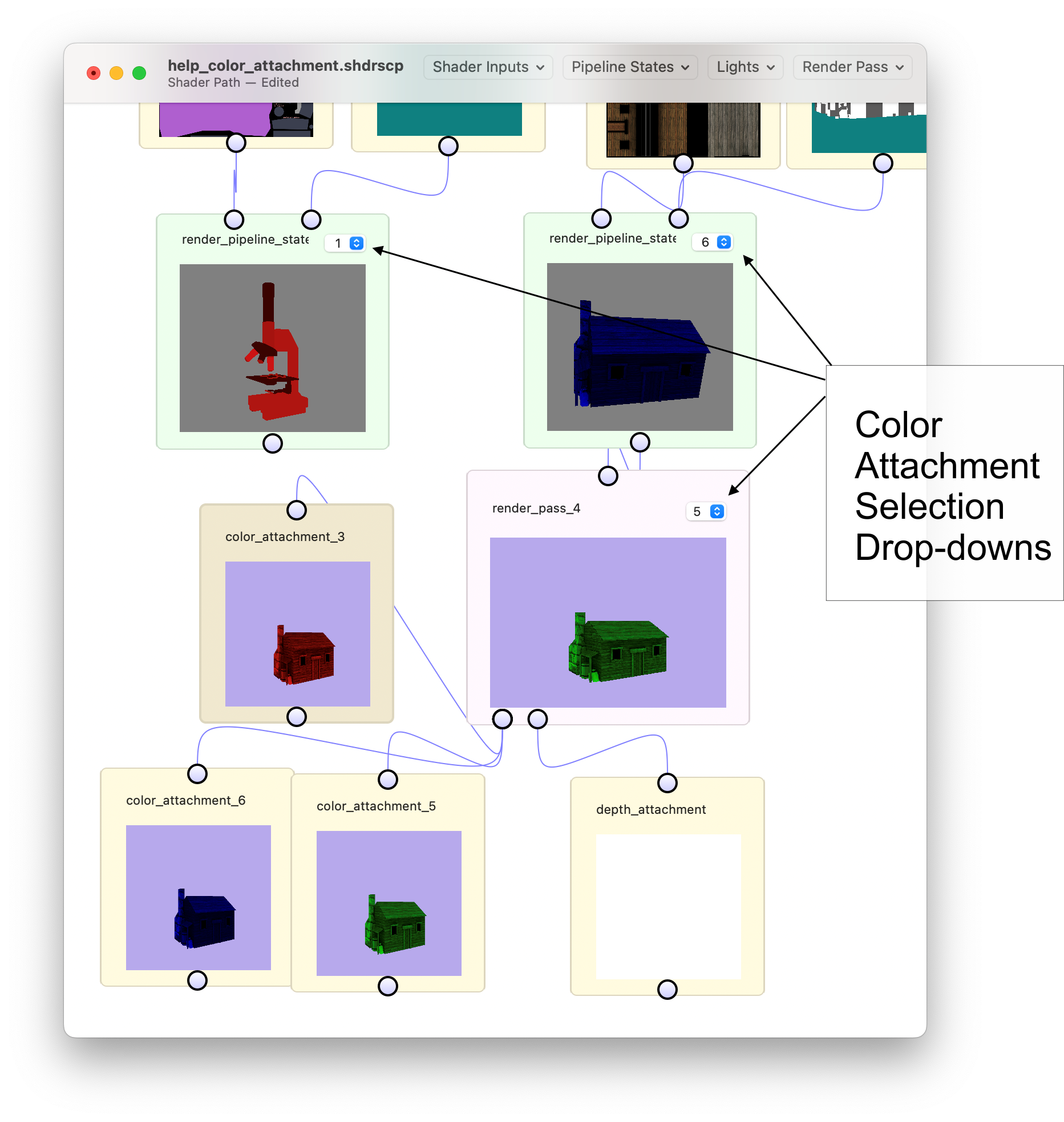
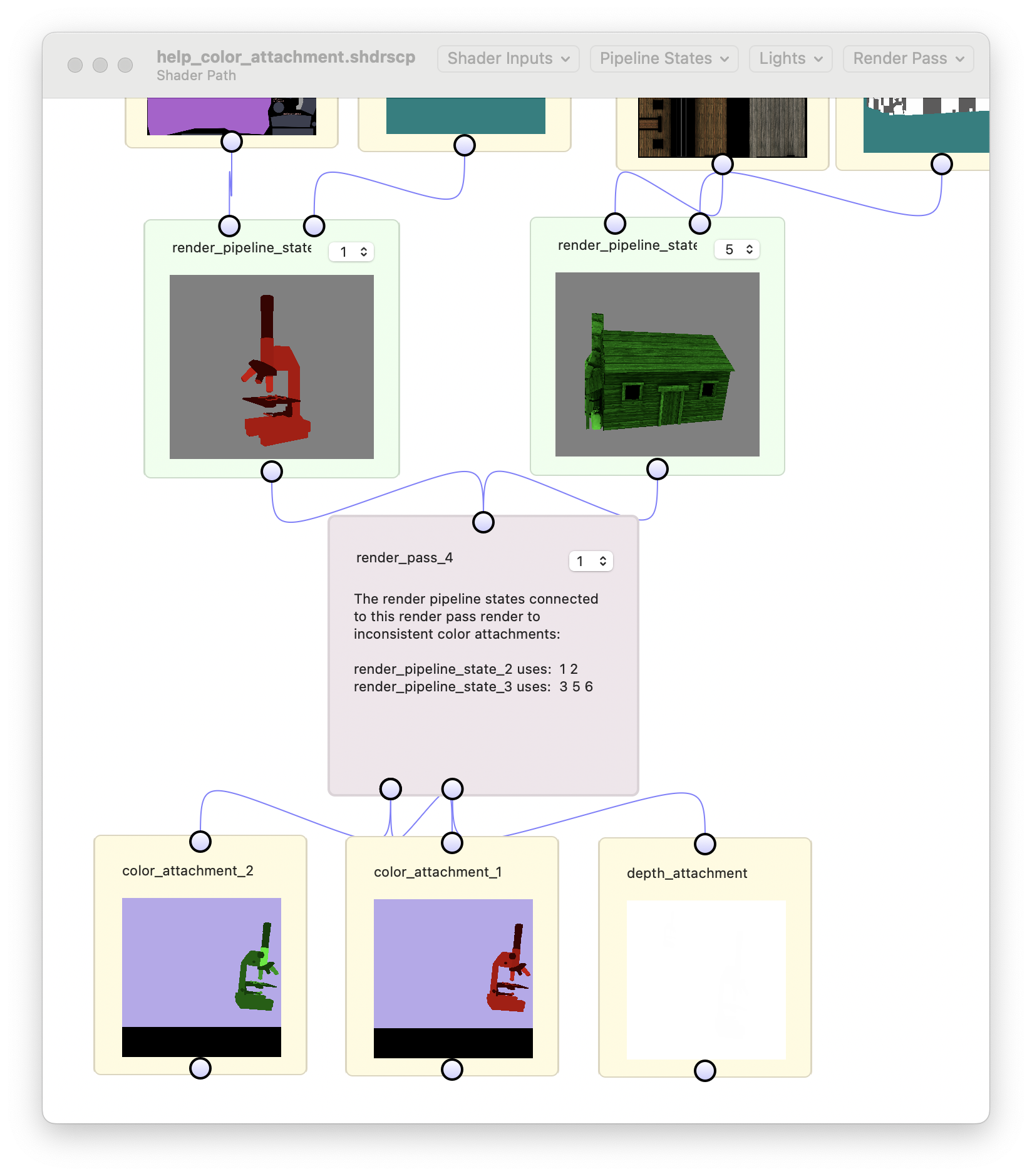
Render Pipeline States render to color attachment 0 and a depth attachment if neither is specified. If you would like to render to more than one color attachment ShaderScope supports this. Simply add a struct to your shader code calling out the color attachments you'd use, specify that struct as the data type returned by your fragment shader, and click the Recompile button. Any Render Passes that are rendering this Render Pipeline State's content will automatically create and adjust their corresponding output textures to match the new color attachments (if the color attachments for the Render Pipeline States connected to a Render Pass are inconsistent the Render Pass will show a message describing the problem). You can view the output for each color attachment to which you're rendering by using the drop-down menu.
See also:
Editing Shader Code
Lights
Shader Parameters
Render Passes
Shadow Maps
Back to Help